Tutoriel Astro
Créer une connexion SSH pour github
Section titled “Créer une connexion SSH pour github”SSH Key Setup Guide_ Generate Locally & Connect to GitHub - Corbin Brown.pdf
# Générer la clé SSHssh-keygen -t ed25519 -C "ton.email@github.com"# linuxeval "$(ssh-agent -s)"ssh-add ~/.ssh/id_ed25519
# en administrateur windowsGet-Service -Name ssh-agent | Set-Service -StartupType ManualStart-Service ssh-agentssh-add c:/Users/<USER>/.ssh/id_ed25519
Il faut aussi ajouter la clé publique :
get-content .\gitssh.pub | clip # pour copier la clé SSH en powershellSur GitHub : Profile → Settings → SSH and GPG key. New SSH Key
# Tester si la connexion est okssh -T git@github.com# Si : Hi USERNAME! You've successfully authenticated, but GitHub does not provide shell access. Alors c'est ok.Si on nomme la clé SSH autrement
Section titled “Si on nomme la clé SSH autrement”Créé, s’il n’existe pas le fichier conf dans le dossier $env:USERPROFILE\.ssh.
Contenu du fichier conf où gitssh représente le nom de la clé SSH :
Host github.com HostName github.com User git IdentityFile ~/.ssh/gitssh IdentitiesOnly yesLes bases
Section titled “Les bases”git init dans le dossier du projet. Initialise le projet (créé un dossier caché .git dans le dossier du projet)
git add . pour ajouter tous les fichiers
git commit -m “Initial commit” pour prendre en compte les changements
git log affiche le log de tous les changements
git checkout -b myNewBranch créé une nouvelle branche
git push origin myNewBranch pousse la branche sur github
Exemple de log :
commit 2fdb1bae671432fba26a25fcf551c0e86d6b9904 (HEAD -> master)Author: Denis <denis@digitalthink.fr>Date:   Thu Jan 29 14:45:44 2026 +0100
    delete test.txt and add index.p
commit 76010468310a7ad2add68ef87a5b5d0e3a7356f7Author: Denis <denis@digitalthink.fr>Date:   Thu Jan 29 14:44:45 2026 +0100
    Initial commit
Pour revenir à un état précédent :
git checkout 76010468310a7ad2add68ef87a5b5d0e3a7356f7 On prend le hash code du commit que l’on souhaite.
Quand on fait ça, on se retrouve dans une autre branche git branch.
On lie ce projet au repository github (on récupère le git@github.com:XXXXXX sur la page du repository) :
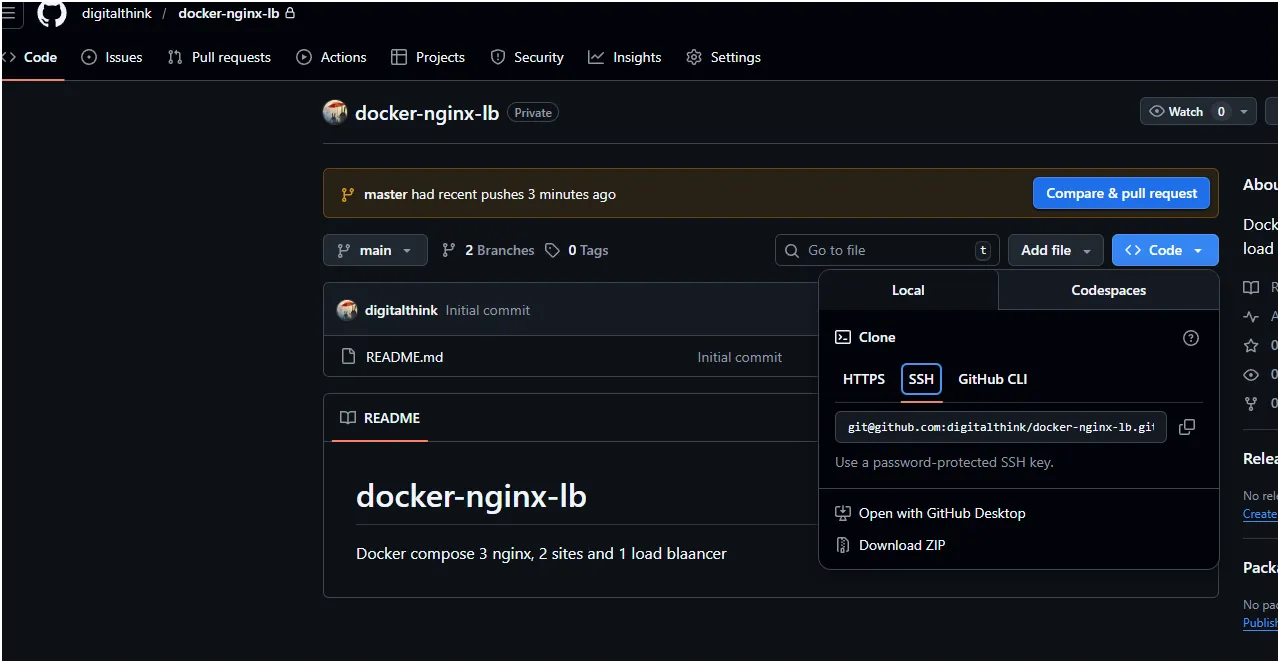
git branch -M main
git remote add origin git@github.com:digitalthink/docker-nginx-lb.git
On pousse les modifications sur github :
git push -u origin main
Exemple complet
Section titled “Exemple complet”echo "# docker-nginx-lb" >> README.mdgit initgit add README.mdgit commit -m "first commit"git branch -M maingit remote add origin git@github.com:digitalthink/docker-nginx-lb.gitgit push -u origin mainSynchroniser
Section titled “Synchroniser”Récupérer / vérifier s’il y a des modifications sur github, pour garder tout synchroniser :
git pull origin main
Erreur de Synchro entre VSCode et WSL
Section titled “Erreur de Synchro entre VSCode et WSL”Si VSCode qui ouvre un projet dans WSL montre des changement dans la panneau git alors qu’il n’y en a pas, il faut avoir installé le plugin WSL dans VSCode pour que git fonctionne correctement avec VSCode coté Windows et le projet git coté WSL.
Initialiser
Section titled “Initialiser” git config --global user.email "you@example.com" git config --global user.name "Your Name"